Home › Slow computers
Why a Computer Feels Slow — and What Security Software Can and Cannot Fix
Before you read on
This article recommends a paid product and earns money when a reader subscribes through the links marked partner link. That commission is paid by the vendor, not by you. It is the only way this site is funded.
What the commission does not buy: the drawbacks below stay on the page, no advertiser saw this text before publication, and where the vendor’s own site and this page disagree, believe the vendor. Our editorial policy sets out the rules we hold ourselves to, and the affiliate disclosure explains the money in full.
Most machines that feel slow are not broken. They are carrying years of accumulated start-up programs, browser extensions and half-finished updates — or they are short of memory, or stuck on a mechanical hard drive. The first job is to work out which. Only then is it worth spending money, and only on the right thing.
The short version
- Slowness has two kinds of cause. Software can fix one kind and cannot touch the other.
- The three biggest real-world causes are a mechanical hard drive, too little memory, and too many programs launching at start-up. Two of those three are free to diagnose.
- Windows and macOS already include malware protection at no cost. A paid suite buys convenience, extra features and support — not a rescue from an otherwise defenceless state.
- If you do buy a suite, check the renewal price rather than the first-year price, and find the cancellation route before you subscribe.
- The illustrations on this page are original diagrams drawn for this article. They are explanatory, not measurements.
First, work out which kind of slow you have
“My computer is slow” describes at least a dozen different faults. A machine that takes four minutes to reach the desktop but then behaves normally has a different problem from one that starts quickly and then freezes whenever a video call begins. Before you install anything, spend ten minutes deciding which column of the diagram below you are in.
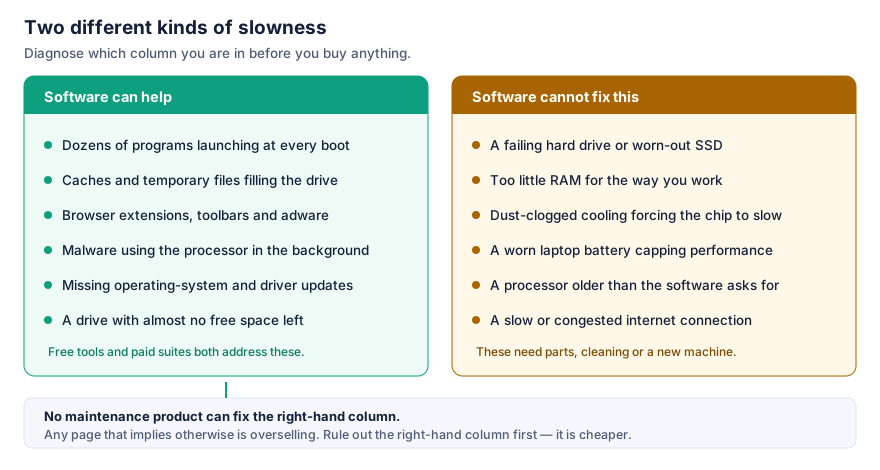
This distinction matters commercially as well as technically. Everything in the left-hand column can be improved by software, and that is the column every maintenance product advertises against. Nothing in the right-hand column can. If your slowness lives on the right, a subscription will not fix it, and the honest recommendation is to spend the money on a memory upgrade or a drive instead.
A ten-minute diagnosis that costs nothing
- Is it slow from cold, or slow all the time? Slow only at start-up points at start-up programs. Slow all the time points at memory, storage or an infection.
- Open the task manager (Ctrl + Shift + Esc on Windows, Activity Monitor on macOS) while the machine feels slow. Note which resource is pinned near its limit: processor, memory or disk.
- Check the drive type. On Windows, the Optimise Drives panel names each drive as either a hard disk drive or a solid-state drive. This single fact explains more slow laptops than anything else.
- Check free space. A drive with only a few per cent free will behave badly whatever else you do.
- Listen and touch. A fan running constantly, or a hot underside, suggests a thermal problem that no software will resolve.
Write down what you found. If every answer points to the right-hand column, you can stop reading here with our blessing and keep your money.
What actually happens when you press the power button
Start-up feels like one long wait, but it is a sequence of distinct stages, and only the last of them is under your control without changing hardware. Firmware tests the machine, a bootloader hands over to the operating system, the kernel brings up drivers, you sign in — and then every program that has quietly registered itself to launch automatically starts competing for the same processor and the same disk.
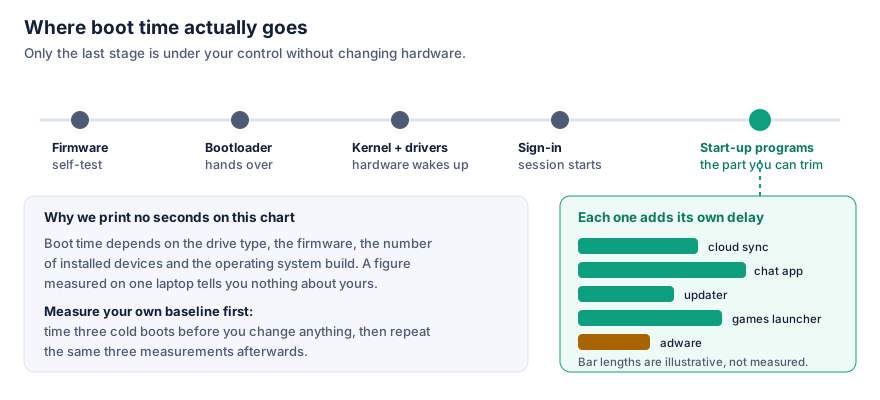
That last stage is where cloud-storage clients, chat applications, games launchers, printer utilities and updaters all wake up at once. Each is reasonable on its own. Twenty of them together is why a laptop that was instant in its first week now takes two minutes to become usable.
You do not need to buy anything to fix this. Windows lists automatic start-up programs in the Start-up tab of Task Manager, with an impact rating; macOS lists them under Login Items in System Settings. Disabling an entry does not uninstall the program — it only stops it launching by itself. What a maintenance product adds is a plainer explanation of what each entry is, which matters if the list is full of names you do not recognise.
The one place to be careful
Do not disable something you cannot identify simply because it is described as “high impact”. Device drivers, security software and manufacturer power-management utilities all appear in these lists. Search the file name first. A tool that offers to disable everything with one click is offering to make a decision you should make item by item.
Memory pressure: the most misdiagnosed cause of all
If a machine is fine for an hour and then becomes treacle-slow with a dozen browser tabs and a video call open, the problem is almost always memory. When RAM runs out, the operating system does not stop; it moves the least-used pages of memory out to the drive and fetches them back on demand. Because storage is orders of magnitude slower than memory, everything that touches a swapped-out page has to wait.
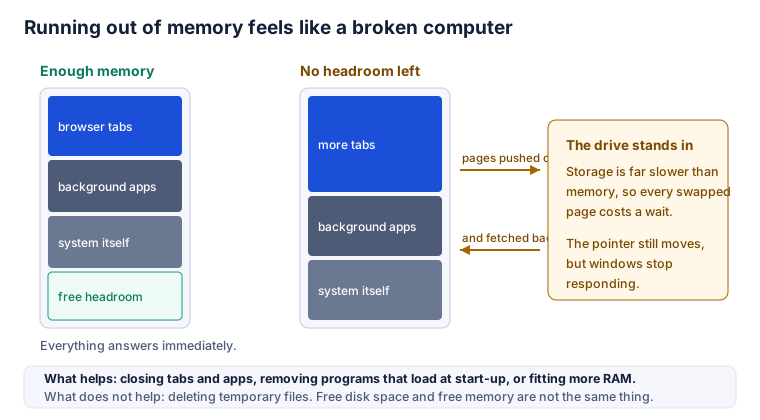
The symptom is distinctive: the pointer still moves smoothly, but windows stop repainting and clicks take seconds to register. The drive light, if the machine has one, stays on.
What helps is reducing demand — closing tabs, quitting applications you are not using, removing programs that launch at start-up — or fitting more memory, where the machine allows it. What does not help is deleting temporary files. Free disk space and free memory are different resources, and a product that markets file clean-up as a cure for freezing is conflating the two.
Storage is the biggest single lever, and it is not a software lever
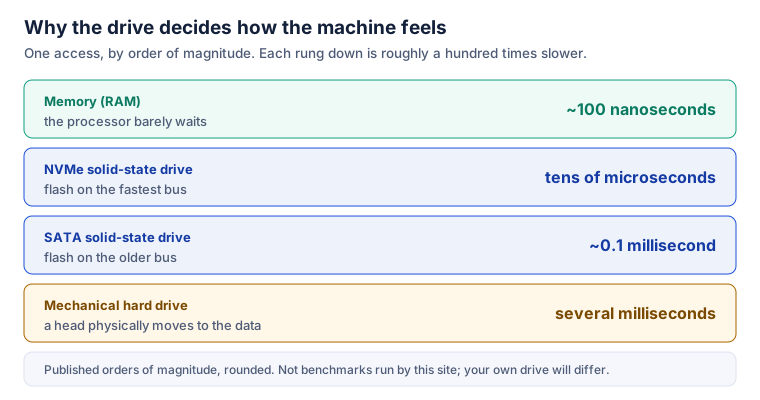
The gap between a mechanical hard drive and a solid-state drive is not a matter of degree. A mechanical drive physically moves a head to reach data; flash storage does not. The practical effect is that a machine which felt hopeless can feel new again after the drive is replaced, with no other change.
Two corrections to advice you will still see repeated:
- Defragmenting a solid-state drive is not useful. There is no head to move, and the unnecessary rewriting adds wear. Modern versions of Windows already apply the appropriate maintenance to each drive type automatically. Treat “defragment your SSD” as a marketing feature, not a technical one.
- Registry cleaning has no demonstrated effect on speed. It is a long-standing staple of optimisation products and we are aware of no credible measurement showing that it makes a modern Windows installation faster. It is not usually harmful, but it is not the reason a machine improves.
Malware and adware as a performance problem
Not every infection announces itself. A good deal of what slows a browser is technically legal: bundled toolbars, coupon extensions, “system optimiser” software that installed itself alongside something else, and advertising injectors. Genuine malware — including software that uses your processor to mine cryptocurrency — behaves the same way from the user’s point of view: the fan runs, the battery drains, nothing looks obviously wrong.
This is the one category where a security product is doing its actual job. It is worth understanding the difference between the two things such a product does, because they are frequently muddled in advertising.
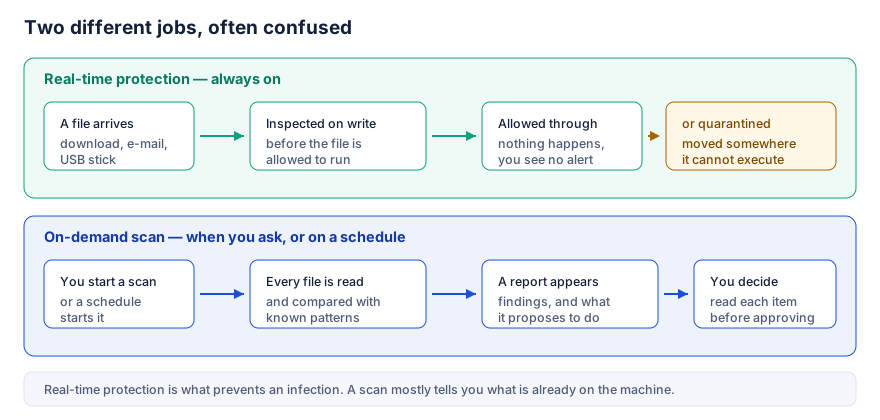
Real-time protection is the part that prevents an infection: it inspects files as they arrive and as they are opened. An on-demand scan mostly tells you what is already present. Both matter, but a page that advertises the scan while saying little about the real-time engine has its emphasis backwards.
Where TotalAV fits
TotalAV is an all-in-one consumer security and maintenance suite, published by Protected.net Group Limited. It bundles malware protection with a set of maintenance and privacy tools behind a single interface, and it is sold as a subscription. The pitch is consolidation: one product and one renewal date instead of five.
We have deliberately not reproduced the feature list here. Bundle contents change, and they differ between Windows, macOS, Android and iOS, so any list we printed would be stale within months and might not match the plan you are shown. What follows is the shape of the offering and what to check for yourself.
| Area | What the suite is for | What to check yourself |
|---|---|---|
| Malware protection | Real-time scanning plus on-demand scans; web filtering against known malicious and phishing sites. | The current independent lab results, not a summary of them. Look at protection rate, false positives and performance impact together. |
| Maintenance tools | Removing cached and duplicate files, reviewing programs that launch at start-up, and clearing browsing traces. | Whether you can review the proposed list before anything is deleted. Anything that cannot be reviewed should be declined. |
| VPN | Encrypting traffic on untrusted networks and masking your address from the sites you visit. | Any data limits on your plan, and the provider’s logging policy. A VPN is not anonymity. |
| Password management | Generating and storing unique passwords so you stop reusing one. | How the vault is exported if you ever leave. Being locked into one vendor’s vault is a real cost. |
| Breach monitoring | Telling you whether an address of yours appears in a known data breach. | That this is notification, not removal. No consumer product deletes your data from brokers as a side effect of a scan. |
| Coverage and billing | One account across several devices and platforms. | The number of devices, the renewal price as opposed to the introductory price, whether renewal is automatic, and how to cancel. |
See TotalAV plans on the vendor’s sitePartner link · advertisementPartner link. If you take out a subscription after following it, we receive a commission from the vendor. It costs you nothing extra and does not change the price you pay.
What an all-in-one suite does not do
Consolidation is a genuine benefit, especially for a household that would otherwise run nothing at all. It also has costs that are rarely printed on the box.
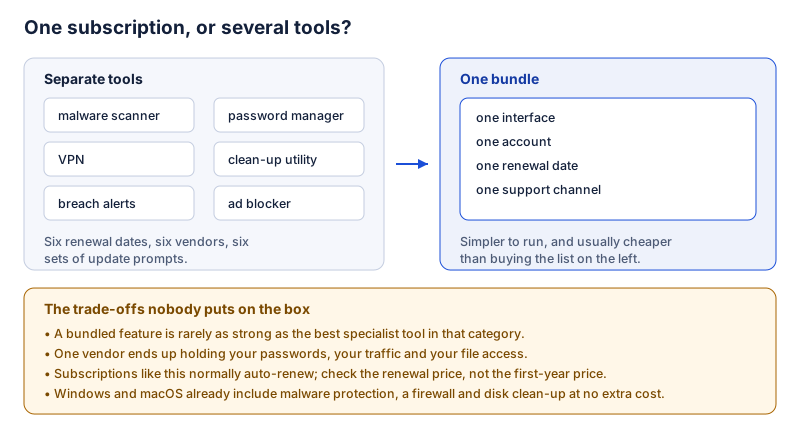
The most important of these is the last one: the operating system already supplies a good deal of this. Windows 10 and 11 ship with Microsoft Defender Antivirus enabled by default, along with a firewall and disk clean-up; macOS screens applications and carries its own malware removal component. That baseline, kept updated, is not nothing. Anyone telling you that a machine without a paid subscription is defenceless is selling to you.
It is also worth being clear about where protection actually comes from. Software occupies one layer of a stack, and it is not the layer that saves you when things go badly wrong.
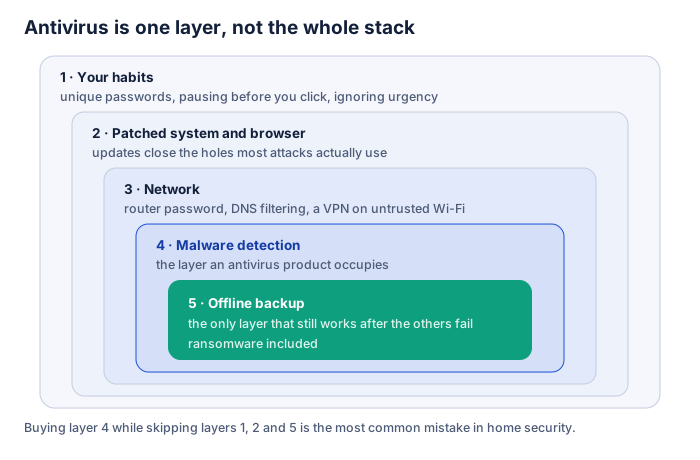
If you do only one thing after reading this article, make it the innermost layer: an automatic backup that is not permanently connected to the machine. That is the layer that survives ransomware, theft, a failed drive and your own mistakes. No scanner does.
Before you spend anything: the free checklist
- Install the pending operating-system updates and restart. This alone resolves a surprising share of complaints.
- Trim the start-up list, item by item, disabling only what you recognise.
- Remove browser extensions you do not use. Extensions are the most common cause of a browser that feels slow while the rest of the machine is fine.
- Run one full scan with the protection you already have — Defender on Windows, or a reputable on-demand scanner — before buying a second one.
- Get free space above roughly ten per cent of the drive’s capacity.
- Check the drive type and the memory total. If it is a mechanical drive, or 4 GB of RAM in 2026, you have found your answer and it is a hardware answer.
- Set up a backup before anything else, paid or unpaid.
If you work through that list and the machine is still slow, and the cause sits in the left-hand column of the first diagram, then a maintenance suite is a reasonable purchase and the convenience may be worth the subscription to you. That is a much narrower recommendation than the one this page used to make, and it is the honest one.
Compare TotalAV plansPartner link · advertisementPartner link. If you take out a subscription after following it, we receive a commission from the vendor. It costs you nothing extra and does not change the price you pay.
Subscriptions, renewals and getting out
This is where consumer complaints about security software cluster, across the whole category rather than any one brand. Four habits protect you:
- Read the renewal price, not the headline price. Introductory pricing for the first term is normal in this market; the renewal is the price you will actually live with.
- Assume the subscription renews automatically unless the checkout page tells you plainly that it does not, and find the setting that controls it on the day you subscribe.
- Note the refund window in your calendar. Vendors in this category advertise money-back guarantees; the length and the conditions are set by the vendor’s own terms, which you should read rather than trusting a summary on a page like this one.
- Keep the confirmation e-mail. It contains the order reference you will need if you ever have to dispute a charge.
As a consumer in the EU you also have rights that no vendor’s terms can remove, including information obligations before purchase and, for most distance contracts, a statutory withdrawal period. Digital services can be an exception where you agree to immediate performance, so read what you are agreeing to at checkout.
Who this suits, and who it does not
A reasonable fit
- Households running no security software at all, where the realistic alternative is nothing.
- People who want one interface and one bill rather than five separate tools.
- Family setups covering several devices and operating systems from one account.
- People who want a support channel they can contact when something looks wrong.
Probably not for you
- Anyone whose slowness is caused by a mechanical drive, insufficient memory or heat.
- Confident users who keep systems patched and are happy with the built-in protection.
- People who want best-in-class in each category rather than one bundle.
- Anyone managing business endpoints, which needs centrally administered tooling.
Frequently asked questions
Will a security suite slow my computer down?
Any always-on scanner uses some processor time and some memory; that is unavoidable, because it inspects files as they are written and opened. On a modern machine the effect is usually small enough to ignore. On an older laptop that is already short of memory it can be noticeable. The honest answer is that it depends on your hardware, which is why we publish no percentage figure here. The independent labs listed in our sources measure performance impact systematically; their current reports are a better guide than any claim on a page like this one.
Do I still need paid antivirus if Windows already has Defender?
Not necessarily. Windows 10 and Windows 11 include Microsoft Defender Antivirus, switched on by default and free, and macOS includes its own malware screening. For a careful user who keeps the system updated, those baseline protections plus good habits cover a great deal. People buy a suite for the convenience of one interface, for the extras bundled with it, for family devices, or for support they can contact. Those are legitimate reasons. “Windows Defender is not real protection” is not one of them, and any page that tells you so is selling to you.
Can I run TotalAV alongside my existing antivirus?
Running two real-time scanners at once is not recommended: they inspect the same files at the same moment and can flag or quarantine each other. On Windows, Defender normally stands down automatically when another registered antivirus takes over real-time protection. If you are moving from one paid product to another, uninstall the old one first and reboot.
Is the free version actually free?
TotalAV publishes a free tier with a limited feature set, and separately sells paid plans. A trial of a paid plan is a different thing from the free tier and commonly asks for payment details up front. Read the checkout page before you enter a card number, and note the date the introductory period ends. We deliberately do not reproduce prices or trial lengths here because they change and vary by country.
What should I check before subscribing to any security suite?
Four things, in this order: the renewal price rather than the first-year price; whether the subscription renews automatically and how to switch that off; how many devices and which operating systems the plan covers; and the refund window and how to claim it. All four are set out in the vendor’s own terms, which prevail over anything written here.
Does a VPN make me anonymous?
No. A VPN moves the point at which your traffic joins the public internet, which is useful on a shared or untrusted network and hides your address from the sites you visit. It does not hide you from a service you are signed in to, it does not stop you being identified by browser fingerprinting, and it does not remove malware. Treat a bundled VPN as a convenience feature, not as invisibility.
Will cleaning temporary files make my machine faster?
Usually only if the drive was nearly full. Freeing space on a drive with very little headroom can help, particularly on a solid-state drive. Deleting caches on a drive that already has plenty of free space mostly means your applications have to rebuild those caches, which is slower in the short term. Clean-up is housekeeping, not a performance upgrade.
Is defragmenting still worth doing?
On a mechanical hard drive, occasionally. On a solid-state drive, no — there is no head to move, and unnecessary rewriting adds wear. Modern Windows already handles the right maintenance for each drive type on a schedule. Be wary of any product that offers to “defragment” an SSD as a headline feature.
What we corrected in this article
An earlier version of this page was written to sell rather than to inform. It has been rewritten. In the interests of being straight with you, here is what was wrong with it and what replaced it.
| The earlier claim | Why it was removed |
|---|---|
| “A single scan can identify and remove up to 30 GB of unnecessary files … in under 15 minutes.” | An invented figure. How much a clean-up recovers depends entirely on the machine, and we had measured nothing. |
| “Your browser is 23% slower than it should be because of 14 adware extensions.” | A fabricated example presented as a typical result. No such measurement existed. |
| “Most users find 3–10 issues” in the first scan; a first scan takes “2–5 minutes” and a deep scan “15–30 minutes”. | Invented numbers. Scan duration depends on the number of files and the drive; we had no data. |
| “Most first-time users start in the 50s and finish in the 80s” on a 0–100 health score. | Invented statistic about a scoring system we had not verified. |
| A bundled “photo editor” listed as a core feature. | We could not verify that the product ships a photo editor. Feature lists change and differ by platform, so the article now points to the vendor’s own list instead of reproducing one. |
| “Removes personal data from data-broker sites.” | Materially different from what breach-monitoring features actually do. Checking whether an address appears in a known breach is not the same as having data removed from brokers. |
| “No credit card required to start” the free trial. | A free tier and a trial of a paid plan are different things, and a trial commonly does ask for payment details. The article now tells readers to check the checkout page. |
| “TotalAV will never delete a file without asking, and every action is logged so you can undo it.” | An assurance about software behaviour that we were in no position to give. |
| “Disk fragmentation” listed as a general cause of slowness. | Not applicable to solid-state drives, which is what most machines sold in the last decade use. Corrected in the article body. |
| The page was framed as a “reader-submitted story” under the heading “Reader Stories”. | It was not submitted by a reader. It is a commercially funded article, and it now says so at the top, with a named author. |
| Claims that the product fixes slowness caused by heat, ageing batteries or insufficient memory. | No software can fix a hardware limit. The article now separates the two explicitly. |
Sources and further reading
Where this article states something as fact, it comes from one of the places below. Where it could not be verified, it is written as a hedge rather than a claim. None of these links are partner links and we earn nothing from them.
- TotalAV — the vendor’s own site (feature lists, plans, terms). Not a partner link. The vendor’s own information prevails over this page wherever the two diverge.
- AV-Comparatives — independent Austrian testing lab; publishes protection, performance and false-positive tests.
- AV-TEST Institute — independent German testing lab; publishes comparable results on a rolling basis.
- Microsoft — Microsoft Defender Antivirus documentation, on what ships with Windows and how it behaves when a third-party antivirus is installed.
- Apple — protecting against malware in macOS, on XProtect and Gatekeeper.
- UK National Cyber Security Centre — device security guidance, for the layered approach used in this article.
- CISA — Secure Our World, for consumer-level guidance on updates, passwords and multi-factor authentication.
Last checked against these sources on 22 September 2026. If you find something here that is out of date or wrong, please tell us — the corrections procedure explains what happens next.
Trademark notice
TotalAV is a product of Protected.net Group Limited. radovian.online is an independent publisher and is not affiliated with, endorsed by, sponsored by or authorised by Protected.net Group Limited, nor by Microsoft, Apple, Google or any other company named here. Product and company names are used only to identify the products discussed. All trademarks remain the property of their owners.
This article is commercial content: the site earns a commission when a reader subscribes through a partner link. It was written by Emma Garcia and reviewed before publication under our editorial policy. No advertiser was given sight of it beforehand. Where this page and the vendor’s own information diverge, the vendor’s information prevails. Nothing here is legal, financial or security advice for your particular situation.